

Azure VM right-sizing is the practice of matching a virtual machine's size, its SKU, to the CPU, memory and network it actually uses, rather than the size it happened to be deployed at. In most estates some machines were sized for a launch peak or lifted from on-premises kit, and have run under that ceiling ever since. To right-size Azure virtual machines properly you gather utilisation evidence over a representative period, usually 30 days, find the machines whose sustained and peak usage sit well below their provisioned capacity, then move them to a smaller SKU with sensible headroom. Done with evidence rather than a hunch, it is one of the most repeatable ways to reduce Azure compute cost while the workload keeps running.
This guide walks the full loop: why machines end up oversized, how to collect the evidence, read the Advisor recommendations, pick a target size, resize an Azure VM safely, and record the result. The figures are directional, because they depend on your estate, but the method applies anywhere.
Why virtual machines end up oversized
Oversizing rarely starts as a mistake. It starts as caution that never gets revisited.
- Sized for the launch peak. A machine is provisioned for the busiest day it might ever see, a migration cutover, a launch, a seasonal spike, then the busy day passes and the size stays.
- Lift-and-shift habits. When a workload moves from a physical or on-premises server, teams often match the old core and memory counts one for one, even though that box was itself bought with years of headroom baked in.
- Headroom as insurance. A larger size feels safer than a call that turns out slightly tight, so the safer-looking option wins by default.
- Nobody owns the review. The size is set once at deployment and never checked against what the machine does, so the bill quietly reflects a decision that no longer holds.
None of these is unreasonable in the moment. The problem is that the moment ends and the size does not.
Gather the evidence with Azure Monitor
Right-sizing without data is guessing with extra steps, so start with utilisation. Azure Monitor collects platform metrics for every virtual machine automatically, with no agent or configuration required.
In the portal, open Virtual machines, select the machine, then under Monitoring choose Metrics for raw charts or Insights then the Performance tab for a curated view. The metric that matters most for compute sizing is Percentage CPU, a host-level platform metric reported as a percentage with a one-minute grain and an average default aggregation. Do not judge on the average alone: chart the sustained line and the 95th percentile together, because a machine can look quiet on average yet still need headroom for short, regular bursts. The Performance view's CPU Utilisation chart defaults to the average and the top 95th percentile.
Memory needs a little care. The host platform metrics expose Available Memory Bytes, but the granular guest-level counters that track how much memory the operating system is actually committing are collected through the Azure Monitor agent inside the machine, not by default. If you plan to size on memory as well as CPU, put the agent in place first, then read available memory over the same window. The Performance view's Available Memory chart defaults to the average plus the top 5th and 10th percentiles, showing the tight moments rather than the comfortable ones.
Look across at least 30 days so one quiet weekend or busy week does not distort the picture. What you want before acting is a machine whose 95th-percentile CPU and lowest available memory both sit comfortably under its provisioned size.
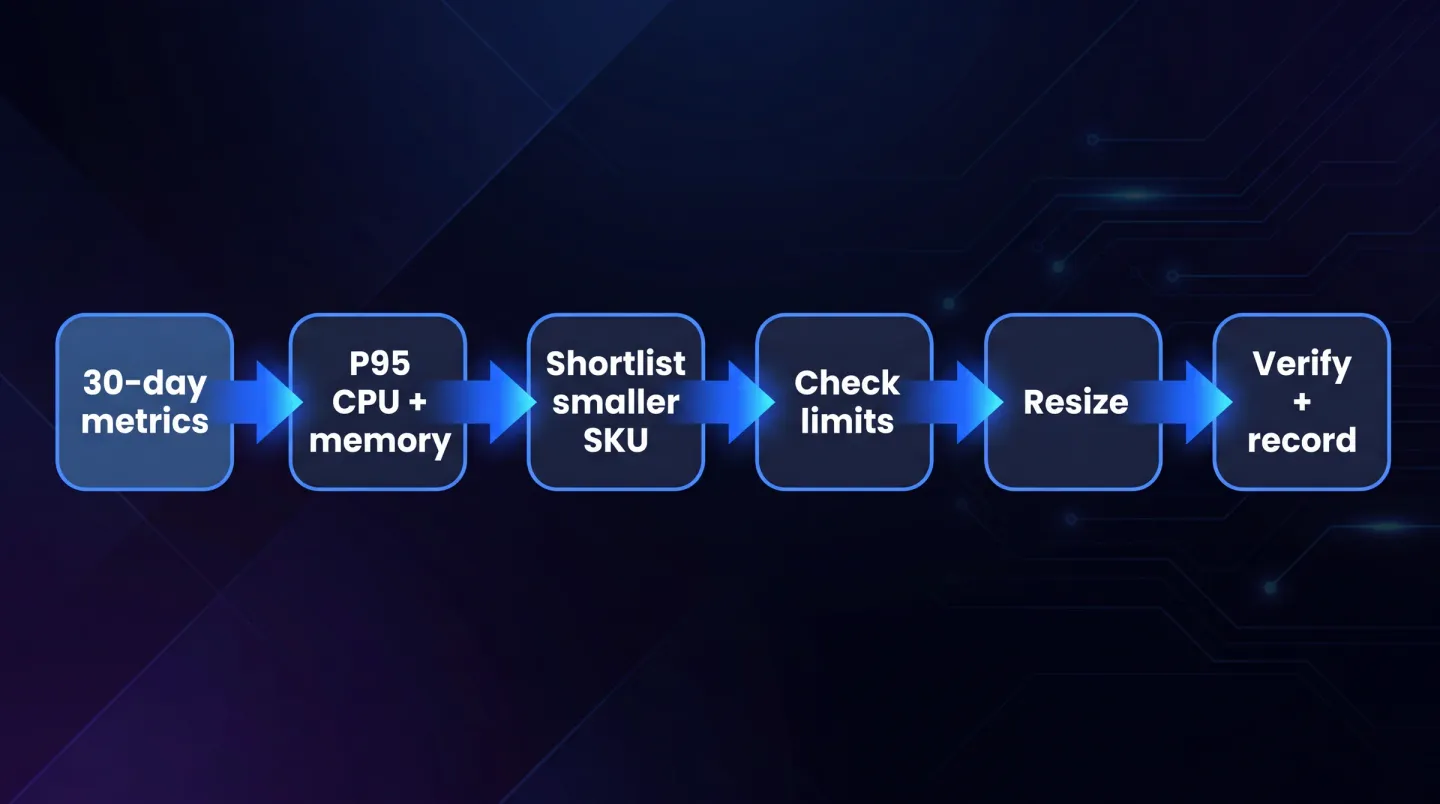
The right-sizing loop runs on evidence: measure, shortlist, check limits, resize, then verify and record.
Read the Azure Advisor recommendations
Once you have a feel for utilisation, let Azure Advisor do the heavy pattern-matching. Under Advisor then the Cost tab, look for Right-size or shutdown underutilised virtual machines. Advisor uses machine-learning models over your usage to suggest a resize or a shutdown for each candidate, and shows the current and target size for a resize.
It helps to know at a high level how these are derived, so you can trust them without treating them as gospel:
- Shutdown recommendations flag machines effectively unused across the lookback window. The criteria use CPU and outbound network utilisation, not memory, and a shutdown is suggested when, for example, the 95th percentile of maximum CPU summed across cores stays under 3 per cent and outbound network under 2 per cent.
- Resize recommendations can cross SKU family and version, and factor in constraints such as whether the target supports accelerated networking and premium storage, whether it is available in the region, and whether the machine sits in an availability set.
- The lookback period defaults to seven days but is configurable to 7, 14, 21, 30, 60 or 90 days, and a change can take up to 48 hours to flow through. You can also filter which machines appear by setting an average CPU threshold under Configuration then the VM/VMSS right sizing tab (subscription owner rights, up to 24 hours to apply), which changes what you see, not how recommendations are generated.
Two honest caveats. Advisor's savings figures use retail rates and ignore any reservation or savings plan discounts you hold, so the headline can read higher than you will realise. And the full potential yearly saving shown is for shutting a machine down or removing it; resizing usually saves real money, but not that full amount. Treat the recommendations as a strongly evidenced shortlist, not a promise.
Choose the target SKU
The Advisor suggestion is a starting point, not the only option. When you pick a target size, weigh a few things together.
- Family fit. General-purpose D-series suits balanced workloads, memory-optimised E-series suits databases and caches, compute-optimised F-series suits CPU-bound work, and burstable B-series suits low-average workloads with spikes. Moving down within the right family is cleaner than jumping across families.
- Constrained-core sizes. Where per-core licensing is the real cost driver, constrained vCPU sizes keep a larger SKU's memory, storage and bandwidth while reducing the billable core count.
- Region availability. A size offered in one region may not exist in another, so confirm the target is available where the machine lives.
- Disk and network limits. Maximum data disks, IOPS, throughput and network interface counts are all tied to the size. Dropping too far can throttle a machine that was never CPU-bound, so check the target's limits against what the workload attaches and drives.
Leave headroom. The aim is a size that comfortably covers the 95th-percentile load, not one that runs hot the first busy afternoon.
Perform the resize, and expect a restart
Resizing is quick, but disruptive, so plan it like one. Changing the size of a running virtual machine causes it to restart, best done during off-peak hours. If the target size is not available on the hardware cluster currently hosting the machine, you must first deallocate it, which stops the machine, releases any dynamic public IP address and may clear the temporary disk; the OS and data disks are unaffected.
There are three common ways to do it:
- Portal. Open the machine, go to Availability + scale then Size, pick from the available list and select Resize.
- Azure CLI. List cluster options with
az vm list-vm-resize-options, then runaz vm resize --size <NewSize>. If the size is not listed,az vm deallocatefirst, resize, thenaz vm start. - PowerShell. List options with
Get-AzVMSize, set$vm.HardwareProfile.VmSize, then apply withUpdate-AzVM.
If the machine sits in an availability set and the new size is not on the current cluster, you may need to deallocate every machine in the set first. Schedule it and tell the workload owner before, not after.
Verify the change and record the saving
A resize is not finished when the machine restarts. Re-check the same Azure Monitor CPU utilisation and available memory metrics over the following days to confirm the smaller size holds under real load with headroom intact. If it runs hot, step back up; that is part of the loop, not a failure.
Then record the evidence. Note the before-and-after size and the monthly cost movement, and keep the Advisor cost export (Advisor Cost tab, download as CSV) as a baseline. That before-and-after record turns a technical change into a defensible saving when finance or an owner asks what changed.
Make it a cadence, not a one-off
Sizing drift is continuous, so a single pass is not enough. Usage patterns shift and workloads move, so yesterday's right call becomes next quarter's oversize. Put right-sizing on a monthly or quarterly review so the estate keeps tracking observed utilisation rather than a deployment-day guess. It sits alongside clearing waste more broadly; for resources billing while doing little or no work, see how idle Azure resources become design debt on the bill.
Where EtherInsights fits
Running this loop by hand across a handful of machines is manageable. Across a growing estate, or many customers for a managed-service provider, it quickly becomes a job in itself, and that is where EtherInsights earns its place. It surfaces oversized and underused virtual machines from utilisation evidence, frames each as an owner-backed action rather than a raw metric, and tracks the before-and-after so a resize rests on proof rather than a hunch.
That evidence-first approach is the whole point of our Azure VM right-sizing service, which turns utilisation data into resizing actions your team can assess and own, with the numbers to back them. Compute is only one line on the bill, so bringing right-sizing together with licence, storage and idle-resource work under a single cloud cost optimisation programme keeps the estate paying for the work it actually does, not the shape it was first given.
Right-sizing is not a one-time cleanup or a blunt cost cut. It is a disciplined, evidence-led loop: measure, shortlist, check the limits, resize with care, then verify and record. Work it on a cadence and Azure compute keeps matching real demand instead of an assumption that expired long ago.
Explore Azure VM right-sizing to see how utilisation evidence becomes owner-backed resizing actions with the proof to support them.