
To find unused Microsoft 365 licences, compare three numbers: how many licences you have bought, how many are assigned to users, and how many of those assigned seats are genuinely being used. The gap between purchased and assigned is your unassigned licences, seats you pay for that nobody holds. The gap between assigned and active is your dormant seats, licences that sit on accounts which have not signed in or touched a service for weeks. You can surface the first gap in minutes in the Microsoft 365 admin centre under Billing then Licenses, and quantify both with a short Microsoft Graph PowerShell script built around Get-MgSubscribedSku and the usage reports. Do it once and you find the waste. Do it every month and it stays found.
This is the deep dive behind step one of our nine-step guide to reducing Microsoft 365 and Azure costs. That overview shows where licence waste sits among the other common patterns. This post is the practical how-to for the licence line itself: how to build a Microsoft 365 licence report, read it correctly, avoid the group-based licensing traps, and turn a one-off cleanup into a habit.
What is the difference between unassigned and dormant licences?
Not all licence waste looks the same, and the fix differs by type.
Unassigned licences are the simplest. You have paid for a quantity of a product, but fewer seats are assigned to users than you own. The surplus bills every cycle whether anyone uses it or not. This is pure headroom that was bought for growth or a project and never trimmed back.
Assigned but inactive seats are subtler and usually the larger prize. Here the licence is assigned to a real account, so it does not show as surplus, but the person is not using it. They may have quietly left, changed role, never been onboarded onto the service, or sit on a plan far richer than they need. The seat looks accounted for, yet the value is zero.
Finding both means measuring twice: purchased against assigned to catch the unassigned surplus, then assigned against actual activity to catch the dormant seats. Licence optimisation is the practice of closing both gaps and keeping them closed.
Where do you find unused licences in the Microsoft 365 admin centre?
Start in the portal for a fast read. In the Microsoft 365 admin centre, go to Billing then Licenses. Each product shows purchased against assigned counts, so any product where purchased is comfortably above assigned is holding unassigned seats you can reclaim or stop renewing.
To move from assigned to actually used, open Reports then Usage. The usage reports show last activity dates per service, such as when a user last sent email, used OneDrive, or was active in Teams. A couple of things are worth knowing so you read them correctly. The last activity date reflects the most recent intentional activity regardless of the 7, 30, 90, or 180 day window you have selected, and when you delete a user their usage data is removed within about 30 days. If names appear anonymised, an admin can turn on real names under Settings then Org Settings then Reports.
The portal is enough to spot the obvious. To report across every SKU at once, and to automate the monthly check, PowerShell is faster.
Build a Microsoft 365 licence report with Get-MgSubscribedSku
The Microsoft Graph PowerShell SDK gives you the purchased against assigned picture for every product in one command. Connect with a read scope, then call Get-MgSubscribedSku.
Connect-MgGraph -Scopes "Organization.Read.All"
Get-MgSubscribedSku |
  Select-Object SkuPartNumber,
    @{ Name = 'Purchased';  Expression = { $_.PrepaidUnits.Enabled } },
    ConsumedUnits,
    @{ Name = 'Unassigned'; Expression = { $_.PrepaidUnits.Enabled - $_.ConsumedUnits } } |
  Sort-Object Unassigned -Descending
For each subscription, Get-MgSubscribedSku returns the SkuPartNumber, a PrepaidUnits object whose Enabled value is the quantity you have bought, and ConsumedUnits, the number assigned to users. Subtract one from the other and you have your unassigned surplus per product, sorted so the biggest gaps sit at the top. That single table is a usable Microsoft 365 licence report, and because it is a script you can schedule it rather than clicking through the portal each month.
One caveat: ConsumedUnits counts seats that are assigned, not seats that are used. It confirms the unassigned gap but says nothing about dormant seats. For that you need activity data.
Cross-reference actual usage
To find assigned but inactive seats, pull the getOffice365ActiveUserDetail report. You can retrieve it through the Microsoft Graph reports API, a call to /reports/getOffice365ActiveUserDetail with a period such as D90, or through the Microsoft.Graph.Reports PowerShell module. Reading the report needs the Reports.Read.All scope.
The report returns one row per user with the last activity date for each workload, the licences assigned, and the licence assignment dates. Join that against your assigned seats and the dormant licences fall out: any account holding a paid seat with no activity across Exchange, OneDrive, SharePoint, or Teams for your chosen window is a candidate to reclaim or downgrade. Set the window to match your reality, 60 or 90 days is a sensible starting point, and treat anything beyond it as a seat to investigate.
What goes wrong with group-based licensing?
Group-based licensing assigns and removes seats automatically as people join or leave a security group, which is the right way to run licensing at scale. It also introduces a few traps when you come to reclaim.
The seat is consumed by the group membership, not by a direct assignment. So to free a licence you often need to remove the user from the licensing group rather than looking for a per-user assignment that is not there. A user can also hold both a direct and an inherited licence at once, and removing the direct one will not free the seat while they still inherit it from the group.
Watch for assignment errors too. In the admin centre, open the product on the Licenses page and check the Errors and issues tab. Common causes include running out of licences, where new group members simply do not get a seat until one frees up, conflicting service plans where two products carry mutually exclusive plans, missing service dependencies, and users with no usage location set. Each error is a seat that is paid for but not delivering, so clearing the list is part of reclaiming value, not just tidiness. As a rule, keep guest and business-to-business accounts out of licensing groups.
Service-plan-level waste
A licence is a bundle of service plans, and you can enable or disable individual plans per user or per group. It is worth being honest about what this saves. Turning off a service plan inside a licence does not reduce what the licence costs, so disabling OneDrive on an E-series seat does not make the seat cheaper. What service-plan detail does give you is a signal. When a whole cohort only ever touches one or two plans of an expensive product, that is evidence the cohort is on the wrong plan, and the saving comes from moving them to a lighter SKU rather than from toggling plans. Use service-plan usage to inform the plan mix, and rely on right-sizing the SKU, not plan toggles, to bring the cost down.
Run a monthly reclaim loop
A one-off cleanup closes today's gap. A loop keeps it closed, because estates never stop moving: people join, leave, and change role every month, and the gap reopens quietly if nobody is watching. The pattern is the same each cycle. Reconcile purchased against assigned, reconcile assigned against active, then act on any seat that cannot justify its cost. See licence reclaim in the glossary for how this fits into a wider Microsoft estate cost model.
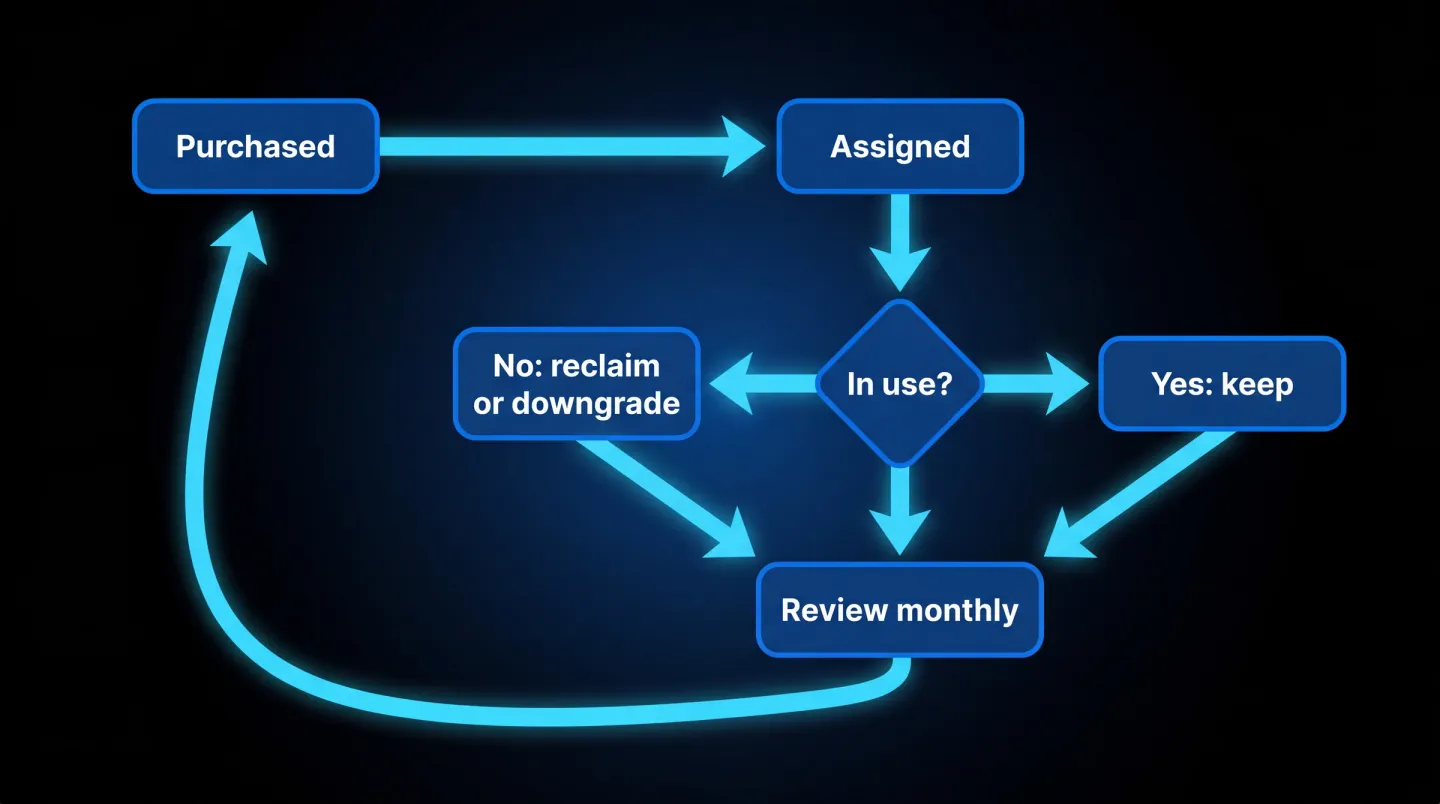
The monthly loop: purchased to assigned to in-use, keep what is used, reclaim or downgrade what is not, then review again next month.
In practice the loop is four moves. Pull Get-MgSubscribedSku to see purchased against assigned. Pull the active user report to see which assigned seats are dormant. For each unassigned or dormant seat decide whether to reclaim it, for example a leaver whose licence should come off, downgrade it where the user fits a lighter plan, or keep it with a named owner and a reason where the seat is genuinely seasonal. Finally, reduce the prepaid quantity at renewal so you stop paying for surplus you never reassign, and record the before and after so the saving is evidenced rather than assumed. The gains here are directional by nature, because they depend on your estate, but almost every monthly pass finds something.
Where EtherInsights fits
Running this loop by hand is manageable for one small estate and quickly becomes a job in itself across a larger one, or across many tenants for a managed-service provider. EtherInsights is built to do the reconciling for you: it surfaces unassigned and dormant seats, flags where activity has stopped, and tracks the before and after so a reclaim is backed by evidence. For the full licence lifecycle, Microsoft 365 licence management and offboarding closes the loop from joiner to leaver, so dormant seats are reclaimed and leavers are offboarded before their licences keep billing.
Licence waste is one line among many, which is why it sits inside the broader picture of cloud cost optimisation alongside idle Azure resources and oversized virtual machines. If you want the wider context first, the nine-step cost guide frames where reclaiming licences fits among the other patterns worth checking.
Unused licences are among the easiest waste to find and the easiest to leave unchecked. Measure purchased against assigned, assigned against active, act on the gap, and repeat it monthly so the estate keeps paying only for the seats it actually uses.
Explore Microsoft 365 licence management and offboarding to see how reclaiming dormant seats and offboarding leavers come together across the licence lifecycle.