
To offboard a user in Microsoft 365 cleanly, and stop paying for a licence that keeps billing long after someone has left, work a fixed sequence on their final day rather than a scramble weeks later. Cut access first, preserve the data, then release the licence so the seat stops costing you. The whole sequence is short:
- Block sign-in and revoke active sessions.
- Remove group and app memberships.
- Convert the mailbox to a shared mailbox.
- Hand over OneDrive and SharePoint access.
- Remove the Microsoft 365 licence.
- Wipe or retire the device in Intune.
- Run a monthly stale-account audit.
The order is deliberate. Security comes first so a departing account cannot be used, data handling comes next so nothing important is lost, and the licence comes off only once the mailbox and files are safe. Every day between someone's leave date and step five is a seat you are still paying for, so the goal is a repeatable Microsoft 365 offboarding checklist that runs in hours, not a cleanup you get to eventually.
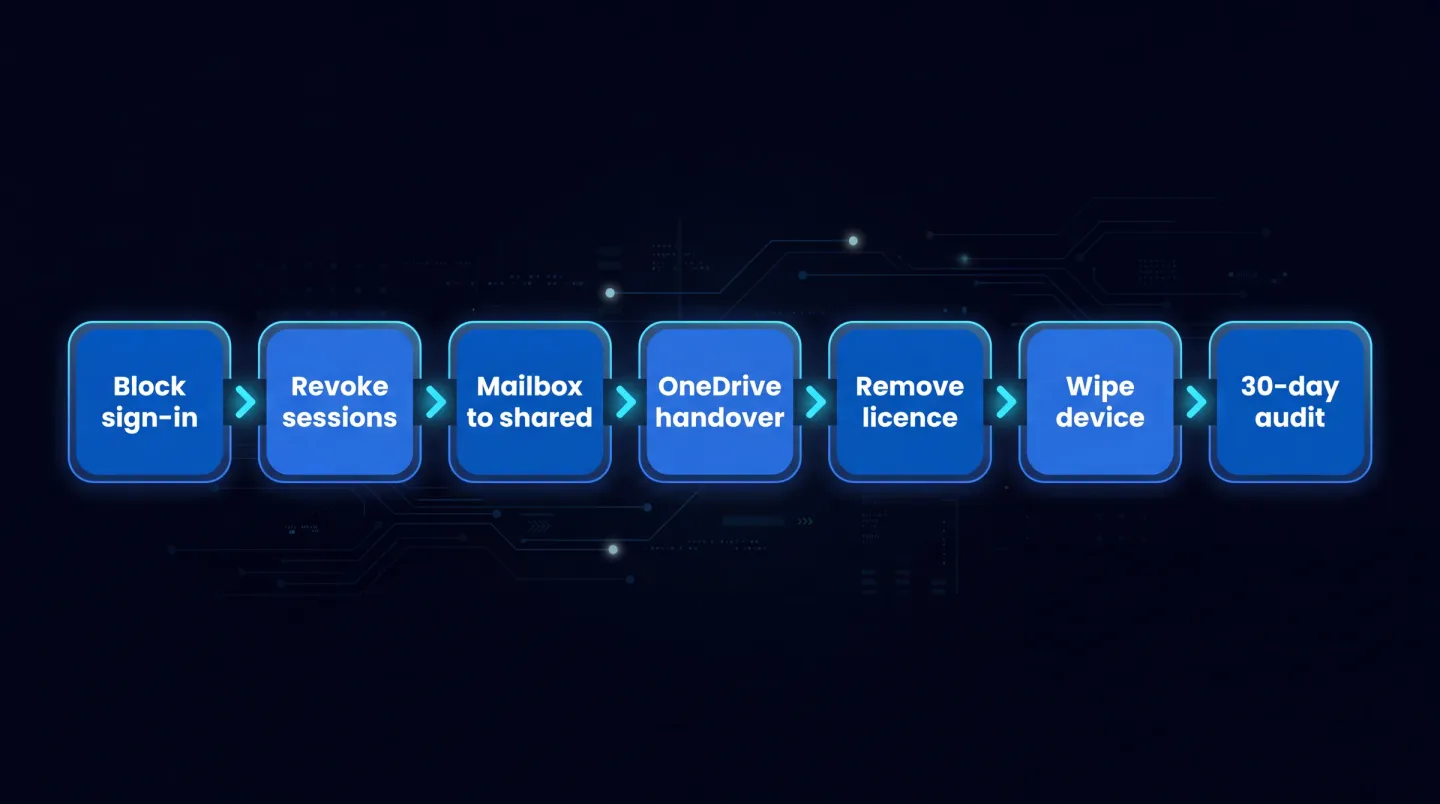
From day zero to day thirty: cut access, preserve the mailbox and files, remove the licence, wipe the device, then audit at thirty days.
Step 1: Block sign-in and revoke sessions
Start by closing the door. In the Microsoft 365 admin centre, go to Users then Active users, select the person, and reset their password. Then on the Account tab choose Sign out of all sessions. Resetting the password stops any new sign-in immediately, and Sign out of all sessions ends current sessions within about an hour as access tokens expire. Toggling Block sign-in on its own can take up to 24 hours to take effect, so pair it with the password reset rather than relying on it alone for speed.
The delay matters because an access token is valid for roughly an hour, so Sign out of all sessions is not always instant. To revoke access straight away, use PowerShell. Revoke-MgUserSignInSession from the Microsoft.Graph.Users.Actions module invalidates every refresh token and browser session cookie for the account by resetting its sign-in validity to now.
Connect-MgGraph -Scopes "User.RevokeSessions.All"
Revoke-MgUserSignInSession -UserId "leaver@contoso.com"
Where speed is critical, the fastest terminations come from the Exchange admin centre or PowerShell, where the change lands within about 30 minutes, and from Microsoft Entra, around 60 minutes. If the account syncs from on-premises Active Directory, expect a longer wait while the change replicates. One thing to keep in mind on the cost side: blocking sign-in stops access but does not stop the billing. The seat keeps costing until you reach step five, so blocking is the start of offboarding, not the whole of it.
Step 2: Remove group and app memberships
Next, strip the account's memberships: security groups, Microsoft 365 groups, distribution lists, Teams, shared mailbox delegations, and any directly assigned applications. This removes lingering access paths and keeps the directory clean for your next audit.
There is a direct cost link here. Where a licence is assigned through group-based licensing, the seat is consumed by the group membership, so removing the person from the licensing group is how you actually release the licence. Leave them in the group and the seat, and its cost, stays attached no matter what else you do. If membership is driven by a dynamic group based on user attributes, updating or disabling the account can remove them automatically, so check the rule rather than assuming. A leaver still sitting in a licensing group is simply a licence you are still paying for.
Step 3: Convert the mailbox to a shared mailbox
Most leavers need their email and calendar to stay reachable for a while, for handover or for customers still writing to the address. Converting the user mailbox to a shared mailbox keeps all of that without a paid seat, because a shared mailbox holds up to 50 GB without a licence assigned to it.
In the admin centre, go to Users then Active users, select the user, open the Mail tab, and choose Convert to shared mailbox. You can also run Set-Mailbox -Identity "leaver@contoso.com" -Type Shared in Exchange Online PowerShell. A few caveats are worth getting right. The mailbox must still hold a licence at the moment you convert it, otherwise the option does not appear, and you remove the licence afterwards. If the mailbox is larger than 50 GB you will need to trim it, or the shared mailbox requires an Exchange Online Plan 2 licence to reach 100 GB. Do not delete the user account, because it anchors the shared mailbox. And if you need to keep the mailbox on Litigation Hold or In-Place Hold, it must carry an Exchange Online Plan 2 licence, or an Exchange Online Plan 1 licence with the Exchange Online Archiving add-on. This conversion is the move that lets you drop the paid licence while keeping the content, so it is central to stopping the spend without losing data.
Step 4: Hand over OneDrive and SharePoint access
Before the account goes, give someone access to the leaver's files. In the Microsoft 365 admin centre, open the SharePoint admin centre, go to More features then User profiles then Manage User Profiles, find the former employee, and use Manage site collection owners to add their manager as an owner of their OneDrive. The manager can then reach the files at the usual OneDrive URL.
Timing matters for retention. After you delete an account, its OneDrive and Outlook content is retained for 30 days, which is your window to restore it. If you remove the licence but do not delete the account, the OneDrive content stays accessible to you even beyond 30 days. Where content must be kept for longer for legal or compliance reasons, apply a Microsoft Purview retention policy or a hold before you release anything. Handing the data over deliberately is what lets you release the licence promptly instead of keeping a paid account alive just in case.
Step 5: Remove the Microsoft 365 licence
This is the step that stops the cost, so removing the licence when an employee leaves should never be the part that waits. In the admin centre, go to Users then Active users, select the user, open Licenses and apps, clear the products you want to reclaim, and save. If the licence was assigned through a group, remove the user from that group instead, as covered in step two.
Be aware of what removing a licence does to data: once the licence is removed or deleted, the account's email, contacts, and calendar are retained for 30 days and then permanently deleted, which is exactly why the mailbox conversion in step three comes first. Once the seat is free you can reassign it to a new starter or reduce the prepaid quantity at renewal so it stops billing altogether. Every day this step is delayed after a departure is a licence still on the bill for no return. Reclaim is one of several recurring waste sources covered in Microsoft 365 cost optimisation.
Step 6: Wipe or retire the device in Intune
If the leaver had a managed device, deal with it in the Microsoft Intune admin centre under Devices. Two actions matter and they are not the same. Retire removes company data, managed apps, settings, and profiles and unenrols the device while leaving personal data intact, which suits a personally owned or bring-your-own device. Wipe restores the device to factory settings and removes everything, which suits a corporate-owned device you are reclaiming. Either action is applied the next time the device checks in.
A couple of details save grief later. Before retiring a Microsoft Entra joined device protected by BitLocker, back up its BitLocker recovery key and any local administrator credentials, because the process can suspend BitLocker. And note that retiring a device does not revoke access tokens on its own, which is another reason the session revocation in step one matters. This step is about data exposure rather than licence cost, but it belongs in the same runbook so nothing is missed.
Use scheduled Intune reports to prove which leaver devices were wiped, retired, or still waiting to check in.
Step 7: Run a recurring stale-account audit
Offboards get missed. Someone leaves during a busy week, the ticket is half-completed, and months later a licence is still billing on a blocked account nobody looks at. A monthly audit is the safety net. Review accounts with no recent sign-in activity in Microsoft Entra, licences still assigned to blocked or never-onboarded accounts, and shared mailboxes that somehow still carry a paid seat.
This audit is the natural partner to finding unused Microsoft 365 licences, where the same activity data and a monthly reclaim loop catch the seats that individual offboards let slip. Run the two together and the gap between someone leaving and their licence coming off stays measured in hours rather than months.
Where EtherInsights fits
Offboarding is a process, not a one-off, and the more accounts and tenants you run the more easily a seat slips through and keeps billing. EtherInsights tracks the licence lifecycle so leavers, dormant seats, and licensed-but-blocked accounts surface in one place with the evidence to act on them, and Microsoft 365 licence management and offboarding turns that into a repeatable offboarding and reclaim process across the estate.
Offboarding is also a security control, not only a cost one, because a leaver with live access is a risk as much as a wasted seat. The same tenant view extends into Microsoft 365 security and conformity, where a baseline and drift detection keep access and configuration in the state you offboarded them to.
A clean offboarding checklist protects your data and stops the quiet cost creep of leavers who keep their licences. Cut access, preserve the mailbox and files, release the seat, wipe the device, and audit monthly, and every departure closes properly instead of leaving a bill behind.
Explore Microsoft 365 licence management and offboarding to see how offboarding and licence reclaim run as one repeatable process across your tenants.