
Microsoft documents what the Package Support Framework is. What is much harder to find is the thing you actually need at 4pm on a Thursday: the application packaged cleanly, it installs, it launches, and then it does something wrong. Which fix-up cures which symptom?
This is that mapping. It assumes the package itself is valid and the problem is behavioural.
What PSF actually does
The Package Support Framework sits between a packaged application and Windows, and intercepts calls the application makes. MSIX runs applications in a container with redirected file and registry writes, and a working directory that is not always what the application assumed. Older applications were written before any of that existed, so they ask for things in ways the container answers differently.
Mechanically it is three pieces. PSFLauncher32.exe or PSFLauncher64.exe replaces your application as the Executable attribute of the Application element in the manifest, so it runs first. It reads config.json from the root of the package. It then injects the PSF runtime and whichever fix-up DLLs you named into the application process, and the application starts behind them. If you are not certain of the application's architecture, the 32-bit launcher works in every case.
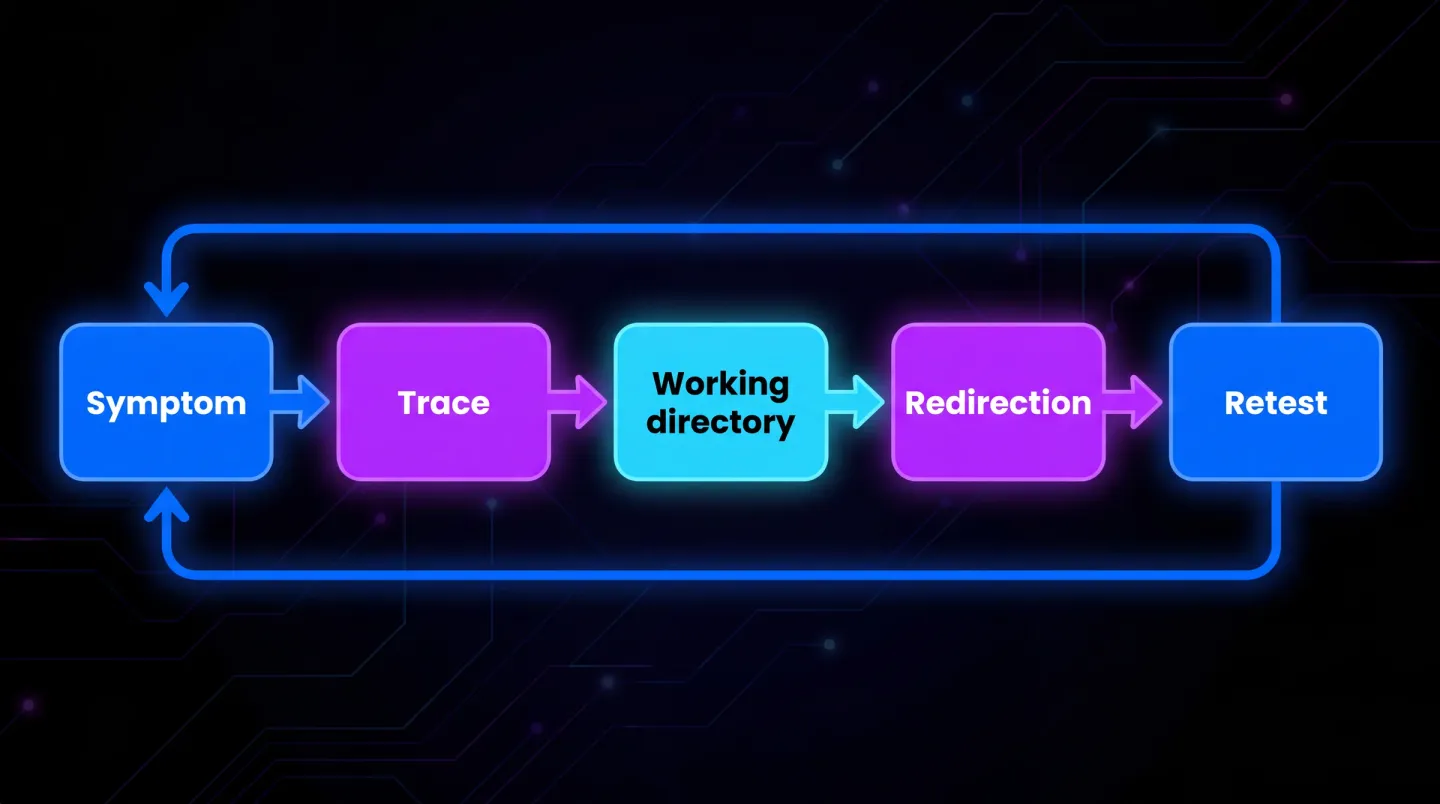
PSFLauncher runs first, reads the config, injects the fix-ups, then hands over.
PSF does not fix bugs. It translates assumptions.
That distinction matters, because it tells you when to stop reaching for PSF and fix the package instead.
The symptom table
The application launches but immediately cannot find its own files.
Usually the working directory. The application assumed it would start in its install folder and is now starting somewhere else, so relative paths resolve to nothing. When no working directory is declared, Windows uses System32, which is almost never what a legacy application expected. This is the most common single cause and the cheapest to fix, because it needs a workingDirectory value in config.json rather than a redirection fix-up at all. Check it before anything else.
The application starts, runs, and loses settings between sessions.
File redirection, via FileRedirectionFixup.dll. The application is writing configuration next to its executable, inside the package, where writes do not persist. The write appears to succeed and quietly goes nowhere useful. Redirect those paths to a per-user location and the settings survive.
The application writes to its own install folder and then fails on the next launch. Same root cause as above, showing up more violently because the file it wrote is one it needs. Same fix. In Process Monitor this reads as an access denied result under the package folder.
Something fails only for standard users and works for administrators.
Registry access rights, usually, handled by RegLegacyFixups.dll. The application opens a machine-wide key and asks for more access than it needs, typically full control when it only ever reads. An administrator gets away with it and a standard user does not. The fix-up rewrites the requested access into something the container will grant, using conversions such as Full2RW and RW2R. It can also fake the deletion of keys the application insists on removing, and hide keys that should not be visible inside the container.
A plug-in, add-in or helper executable does not load.
Dynamic library loading, via DynamicLibraryFixup.dll. The application is loading something from a path the container resolves differently, or is looking for a dependency it expects to find installed machine-wide. Its configuration sets forcePackageDllUse and lists each library by name alongside the package-relative filepath it should come from. This is the fix-up that most often reveals an unpackaged dependency, which is a larger problem than a path.
Nothing obvious, and no clear pattern.
Trace first, with TraceFixup.dll. Do not guess. The tracing fix-up records what the application is actually asking for, which turns a guessing game into a short list. Every hour spent tracing saves several spent applying fix-ups speculatively and wondering which one helped.
What the configuration actually looks like
It all lives in one file at the root of the package, and the shape is the same whichever fix-up you apply:
{
  "applications": [
    { "id": "ContosoApp", "executable": "ContosoApp/ContosoApp.exe", "workingDirectory": "ContosoApp/" }
  ],
  "processes": [
    { "executable": "ContosoApp",
      "fixups": [
        { "dll": "FileRedirectionFixup.dll",
          "config": { "redirectedPaths": { "packageRelative": [ { "base": "ContosoApp/", "patterns": [ ".*\\.ini", ".*\\.log" ] } ] } } }
      ] }
  ]
}
Three things are worth internalising. The id must match the Id attribute of the Application element in the manifest, or nothing happens and you get no useful error. The executable under processes is normally the file name with path and extension stripped, and it is treated as a pattern, so a careless value catches more processes than you meant. And applications, processes and fixups are all arrays, which is how a package ends up carrying a stack of fix-ups nobody can explain later.
Trace before you guess
Two tools do almost all the diagnostic work, and they answer different questions.
Process Monitor tells you what happened at the operating system boundary. Filter to your executable, exclude successful results, then read from the bottom of the list upwards because the most recent events are there. You are looking for two phrases: access denied, and path or name not found. The first usually points at redirection or registry access rights. The second points at the working directory.
The tracing fix-up tells the same story from inside the process, and it is designed to surface compatibility failures specifically. Add the DLL to the package and a fragment to config.json:
{ "dll": "TraceFixup.dll", "config": { "traceLevels": { "filesystem": "allFailures" } } }
By default the trace filters out failures it considers expected, which is usually what you want, because applications routinely try to delete files that were never there and ignore the result. The cost is that a genuine failure can hide inside the noise it removes. Start with the default, and widen to allFailures for the area you suspect only once the default view has not explained the behaviour.
Output goes to an attached debugger. If you are not debugging, run DebugView from Sysinternals and read it there. That is the whole workflow, and it is far faster than applying a fix-up and hoping.
The rule that saves the most time
Work in this order:
- Reproduce the failure with a standard user account, not an admin one. Half of all "MSIX broke it" reports are permission assumptions that were always there and were previously masked.
- Trace before fixing. Find out what the application is asking for.
- Fix the working directory before reaching for any redirection.
- Apply one fix-up at a time and retest. Stacking three at once means you will never know which was needed, and you will carry all three forever.
That last point matters more than it sounds. Fix-up configuration is something the next person inherits. A package carrying three fix-ups where one was needed is a package nobody will dare touch in two years.
There is a fifth rule that shows up after a few dozen packages: write down why, next to the package, in a form that survives the person who decided. One line per fix-up, naming the symptom it cured, is enough. Without it the next reviewer has to reproduce the original failure before they can safely remove anything, which is why so few fix-ups ever get removed.
When PSF is the wrong answer
PSF is a compatibility shim, and shims accumulate. Reach for something else when:
- The application needs a driver or a system-level service. That is not a container problem and no fix-up will solve it. It probably should not be MSIX.
- The application needs to write somewhere genuinely machine-wide and other applications need to read it. Redirection makes that write invisible to everyone else, which looks like a fix and is not.
- The application only fails when a second application is running. Communication through shared files, shared registry keys or named objects does not survive containerisation cleanly, and no single fix-up addresses it.
- You are on your fourth fix-up. At that point the honest answer is that this application is not a good MSIX candidate today. MSI or a PowerShell App Deployment Toolkit package will deliver it with less ceremony, and you can revisit later.
Knowing when to stop is the difference between a packaging practice and a growing pile of undocumented shims. It also affects delivery: a package carrying fix-ups behaves differently under App Attach than a clean one, which is the subject of what PSF means for App Attach.
Doing this repeatedly
Diagnosing one application this way is satisfying. Doing it for four hundred is a staffing problem, which is why the mapping tends to live in one person's head and leave when they do.
At estate scale the mapping is also the wrong unit of work. What you need is a verdict per application: ships as-is, ships with fix-ups, or cannot move yet. Getting there quickly turns a legacy to MSIX conversion from an open-ended project into a schedule, and it is the framing behind our legacy applications route.
Where EtherApps Forge fits
EtherApps Forge stages PSF fix-ups as part of packaging rather than as a separate remediation project afterwards, so the decision is recorded with the package instead of remembered. The wider approach is on our MSIX packaging and deployment route, and the fix-up staging itself arrived in EtherApps Forge 1.0.6.
The practical effect is on the verdict split rather than on any single package. Applications that would previously have been parked because they misbehaved inside the container move into the "ships with fix-ups" category instead, with the reason attached, so the next person to open the package can see what was decided and why.
EtherApps Forge is a Windows desktop application with a free 7-day trial, so you can test the diagnosis loop against an application you already know is awkward.
Explore MSIX packaging and deployment
Start with the working directory, trace before you guess, and add one fix-up at a time.