
Converting an EXE to MSIX is straightforward when the installer is well behaved and genuinely difficult when it is not. Most guides cover the first case. This one covers the whole path, including the parts where it goes wrong, because that is where the time actually goes.
The end state is a signed MSIX package that installs cleanly, uninstalls cleanly, and deploys through Intune.
Before you start: is MSIX the right target?
Worth thirty seconds, because it saves days.
MSIX suits ordinary user-mode desktop applications. It does not suit anything that installs a driver, registers a system service, needs to write machine-wide locations other applications read, or hooks deeply into the operating system. If your EXE does any of those, package it as MSI or through the PowerShell App Deployment Toolkit instead and move on. Forcing it into MSIX produces a package that technically exists and never quite works.
Three questions settle most cases before you open any tooling:
- Does the installer need administrative rights for anything beyond writing to Program Files? Writing to Program Files is normal. Installing a service, a driver, or a system-wide hook is the signal to stop.
- Does anything else read what this application writes? MSIX redirects writes into a per-user container, so if another application, a scheduled task, or a monitoring agent reads a file or key this one produces, redirection makes that data invisible to them. That looks like a working package and is not.
- Does the vendor already ship an MSIX? Ask before you capture. Repackaging an installer that has a supported MSIX is work you can simply not do.
If you are not sure, run the conversion anyway but timebox it. The failure will be obvious.
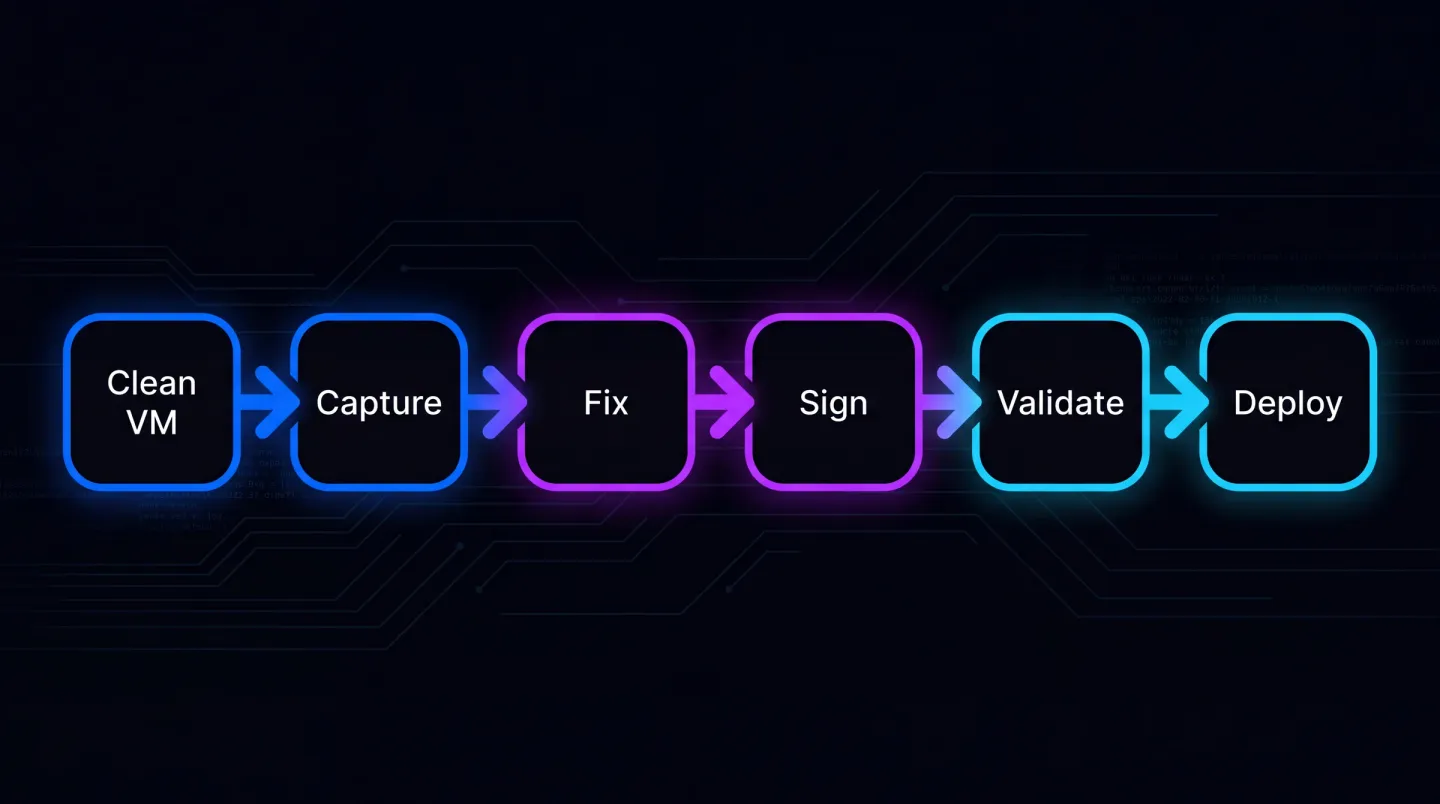
Six steps, one loop: a failed diagnosis sends you back to the snapshot, not forward with a patched package.
Step 1: a genuinely clean machine
This is the step people skip and then pay for.
Capture works by comparing the machine before and after installation. Anything already present is invisible to that comparison, so a machine with the application's dependencies already installed produces a package that works on your machine and nowhere else.
Use a fresh virtual machine, matching the target Windows build, with nothing on it beyond the operating system. Snapshot it before you start so you can return to a known state, because you will be doing this more than once.
Two details make the difference between a clean capture and a noisy one:
- Quiet the machine first. Windows Update, security definitions, and store app updates all write to disk while your capture runs, and every one of those writes becomes part of the package. Let the machine finish its initial updates, pause them, then snapshot.
- Match the build, not just the version. Capturing on a newer Windows build than your fleet runs bakes in redistributables and framework versions present there and absent on the target. Capture on the oldest build you support.
A capture attempt on a machine carrying one failed install is worthless, so revert before every retry.
Step 2: capture the installation
Take the baseline, run the installer exactly as a user would, then complete the capture.
Two things worth doing during the install:
Launch the application once before finishing the capture. Many applications do first-run setup: creating configuration, writing registry defaults, unpacking resources. If you capture before that happens, you package an application that has never initialised and it will do its first run inside the container, where the write may not persist.
Note anything the installer asks you. Licence keys, server addresses, install locations. Those choices are now baked into the package, and if they were wrong you are rebuilding.
You also set the package identity here, and it is awkward to change later:
<Identity Name="Contoso.LineOfBusinessApp"
          Publisher="CN=Contoso Ltd, O=Contoso Ltd, C=GB"
          Version="1.0.0.0" />
Publisher is the one that matters: it must match the subject of your signing certificate character for character, so decide it now rather than discover a mismatch at step four. Version is a four-part number and deployment cares that it increases, so adopt a convention and write it down.
If there is no installer at all, capture is not your path: repackaging without the original installer covers that case instead.
Step 3: expect it to misbehave, and diagnose properly
The package will install. Then something will be off.
Do not start applying fixes speculatively. Reproduce the problem as a standard user, find out what the application is actually asking for, and match the symptom to a specific cause. We covered that mapping in which PSF fix-up do I need, and the short version is: check the working directory before you reach for anything else, because it is the single most common cause.
Two habits keep this short. Reproduce as a standard user, because much reported MSIX breakage is a permission assumption that was always in the application and was masked by everyone running as a local admin. Then look at where the container put the write: per-user data lands under %LOCALAPPDATA%\Packages\<PackageFamilyName>\LocalCache, and finding the file there proves the write succeeded and the application is looking in the old place.
Apply one change at a time and retest. A package carrying four fix-ups where one was needed is a package nobody will maintain.
If the third fix-up has not settled it, reconsider the target. Converting a legacy application to MSIX covers that decision, and there is no shame in delivering an awkward application another way.
Step 4: sign it
An unsigned MSIX will not install on a managed device. This is not optional and it is where a lot of first attempts stop.
You need a code signing certificate whose subject exactly matches the publisher in the package manifest. Not approximately. Exactly. A mismatch here produces an install failure whose error message does not mention the certificate at all, which is why it costs people an afternoon. Compare the two directly before you sign:
Get-ChildItem Cert:\CurrentUser\My -CodeSigningCert |
  Select-Object Subject, Thumbprint, NotAfter
Whatever comes back under Subject belongs in the manifest Publisher, including the order and spacing of the relative distinguished names. Copy it rather than typing it.
Sign from the certificate store by thumbprint rather than handling a PFX file, and use an RFC 3161 timestamp server. Without a timestamp the package stops validating when the certificate expires, even though it was signed legitimately while that certificate was live.
signtool sign /sha1 <thumbprint> /fd SHA256 /tr <your RFC 3161 timestamp URL> /td SHA256 .\ContosoApp.msix
One more thing catches internal certificates: the certificate has to be trusted on the device that installs the package. A public authority already chains to a root Windows trusts; your own internal authority or a self-signed test certificate does not, so it has to reach the device trust store first. Deploy it through your normal certificate management, not by hand on one test machine, or your validation passes on the only device where it could.
Step 5: validate before you ship it
Validate the package and treat a non-zero exit as a stop. It is much cheaper to find a malformed manifest now than after it reaches a test ring.
Confirm the signature and timestamp landed too:
Get-AuthenticodeSignature .\ContosoApp.msix |
  Format-List Status, SignerCertificate, TimeStamperCertificate
Status should read Valid and TimeStamperCertificate should not be empty. An empty timestamp field is a package that stops installing on some future date for no visible reason.
Then actually install it on a clean machine, as a standard user, and check:
- It launches.
- It keeps settings across a restart.
- It uninstalls cleanly and leaves nothing behind.
Add-AppxPackage .\ContosoApp.msix
Get-AppxPackage -Name Contoso.LineOfBusinessApp | Select-Object Name, Version, PackageFullName
Remove-AppxPackage -Package <PackageFullName>
That last one is the point of MSIX. If uninstall leaves debris, something is being written outside the container and you have not finished.
Add a fourth check if people keep the application open all day: install it, launch it, then install an incremented version over it. Updates are staged while the application runs and applied when it next starts, so a user who never closes it never gets the update. Not a bug, but a support call if nobody expected it.
Step 6: deploy through Intune
Package the MSIX for Intune and assign it. In the Intune admin centre that is Apps, All apps, Add, then the line-of-business app type, which accepts the .msix file directly. Assign it as required to a pilot group first, available to everyone once the pilot has held.
Worth knowing: MSIX deployed this way updates by version, so your versioning scheme now matters. Get it wrong once and devices refuse the update because the version did not increase. Watch install status per device rather than trusting the assignment, and note that a device already carrying a copy signed by a different publisher will refuse the managed one, because to Windows they are different applications.
Where the time actually goes
Not the conversion. The conversion is minutes. The time goes into the clean-machine discipline, the diagnosis when the application misbehaves, and the signing configuration. Doing one application teaches you the pattern. Doing four hundred is a different problem, and the reason application packaging remains a specialist job.
The difference is not effort per application, it is consistency: whether every package was captured on the same build, signed the same way, and had its fix-up decisions recorded somewhere other than in one person's memory. That is a workflow problem rather than a packaging problem, and it is why estates end up with packages nobody dares rebuild.
Where EtherApps Forge fits
EtherApps Forge is built for the four hundred case: capture, route, stage the fix-ups, sign and validate as one flow rather than six tools and a runbook. Decisions are recorded with the package instead of remembered, which is what makes the second pass through an estate cheaper than the first.
It is a Windows desktop application rather than a hosted service, so capture and signing stay inside your environment, and it runs on a free 7-day trial. If you ship your own builds rather than capturing someone else's installer, the path starts from a build folder instead: MSIX packaging for developers and ISVs covers it, and building and signing MSIX in CI/CD without the Windows SDK shows the pipeline shape. For the estate-wide view, MSIX packaging and deployment runs from capture through delivery.
Explore MSIX packaging and deployment to see how capture, remediation, signing and delivery run as one flow instead of six.