
The PowerShell App Deployment Toolkit and Intune are a good pairing: PSADT handles the messy parts of installing a Windows application, and Intune handles getting it to devices. The chain between them is where people lose time, because the two have different opinions about folder structure, exit codes and what counts as success.
This covers v4 specifically. If you are following a guide written for v3, the command syntax has changed and you will get errors that look like packaging problems but are not.
The short version: keep the toolkit's folder structure intact, nominate its entry point as the setup file when you build the .intunewin, mirror the install command in the uninstall command, choose a detection rule that can tell one version from another, and map the reboot and retry exit codes.
Why use PSADT when MSIX already exists?
Because plenty of applications are not MSIX candidates. Anything installing a driver or a system service, anything needing genuine machine-wide writes, anything with an installer that insists on being an installer. MSIX is the right target when it fits, and PSADT is the right answer when it does not.
PSADT also gives you things MSIX does not: user prompts before a restart, closing running applications gracefully, deferrals, and logging that a service desk can actually read.
The decision is usually quick:
- Does it install a kernel-mode driver, or a machine-wide service other software depends on? Use PSADT.
- Does another application read what it writes outside its own folder? Container redirection hides that write, which looks like a fix and is not.
- Does it need to close an open document or offer a deferral before a restart? PSADT's home ground, with no MSIX equivalent.
- None of the above, and the installer is well behaved? Try MSIX first. Converting an EXE to MSIX walks that path.
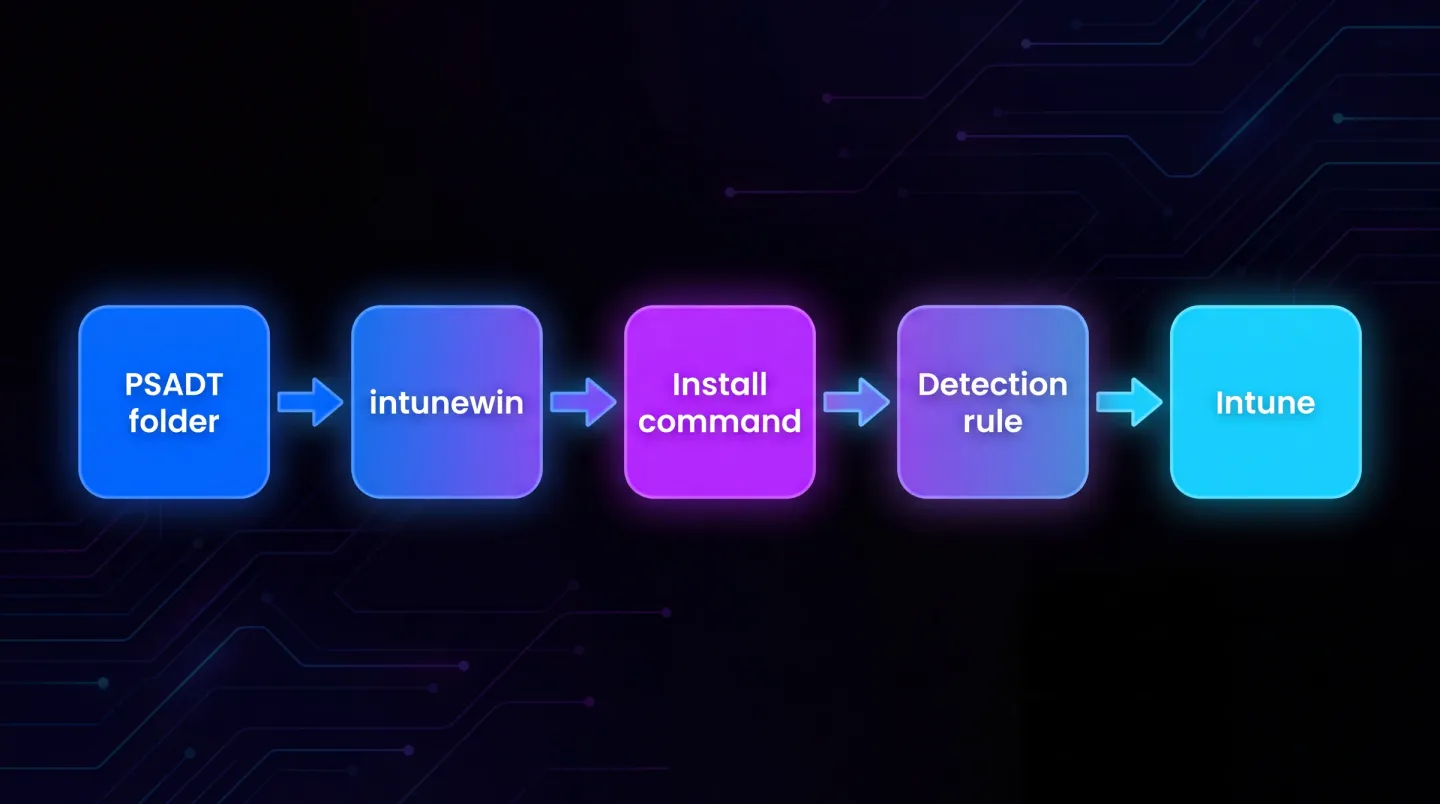
A PSADT source folder becomes one intunewin file, and four Intune settings decide whether it works.
Step 1: get the folder structure right
Intune's packaging tool takes a source folder and produces a single .intunewin file. It bundles everything in that folder, so the layout matters.
Keep the PSADT structure intact. The toolkit expects its own folders in known places and will not find its resources if you flatten or rearrange them. Put the application's installer inside the toolkit's files folder, leave the rest alone, and point the packaging tool at the top of that structure.
In v4 the working layout looks like this, with your installer as the only thing you add:
ContosoApp\
  Invoke-AppDeployToolkit.ps1
  Invoke-AppDeployToolkit.exe
  PSAppDeployToolkit\
  Config\
  Strings\
  Files\
    ContosoAppSetup.exe
  SupportFiles\
Then build the package with the Microsoft Win32 Content Prep Tool:
IntuneWinAppUtil.exe -c C:\Packaging\ContosoApp -s Invoke-AppDeployToolkit.exe -o C:\Packaging\Output
The setup file you nominate should be the deployment script, not the application's own installer. This is the single most common mistake. Nominating the vendor EXE produces a package that ignores your PSADT wrapper entirely, which is confusing because it appears to work.
Two limits worth knowing. An Intune Win32 app is capped at 30 GB, and the tool encrypts the folder into a single opaque file, so you cannot patch one line of the deployment script afterwards. Keep the source folder in version control and treat the .intunewin as a build artefact.
Step 2: the install and uninstall commands
In v4 the invocation changed. The deployment script and its wrapper executable were renamed, and the toolkit's own function names changed with them, so a v3 command line names a file that is no longer there. Copying one into an Intune app produces an immediate failure with an unhelpful message. The commands you want are these:
Invoke-AppDeployToolkit.exe -DeploymentType Install -DeployMode Silent
Invoke-AppDeployToolkit.exe -DeploymentType Uninstall -DeployMode Silent
Two things to get right:
Run silent. Interactive prompts have nowhere to appear when Intune runs the package in system context, and the install will hang rather than fail cleanly.
Match the uninstall command to the install command. Intune will use it, and an uninstall that does not work turns a simple app assignment change into a manual device visit.
Prefer the supplied executable over calling powershell.exe yourself: it handles the PowerShell host architecture. The Intune Management Extension is a 32-bit process, so if you do invoke PowerShell directly, %windir%\System32 is redirected to SysWOW64 and you need %windir%\Sysnative\WindowsPowerShell\v1.0\powershell.exe to reach the 64-bit host.
Test both commands in system context before you package anything. Running as your own admin account proves less than you think, because your profile carries environment variables and certificate trust that SYSTEM does not:
PsExec.exe -s -i cmd.exe
Run install, then uninstall, and read the logs before you go near Intune. PSADT writes to C:\Windows\Logs\Software by default; Intune's side is in C:\ProgramData\Microsoft\IntuneManagementExtension\Logs\IntuneManagementExtension.log. Together they tell you whether the problem was the package or the assignment.
Step 3: which detection rule should you use?
Intune decides whether the application is installed using the detection rule, not by asking the package. Get this wrong and one of two things happens: Intune reinstalls the application on every check-in, or Intune believes it is installed when it is not.
Pick a detection method that is specific to the version you are deploying:
- A file version check on the application's main executable is usually the most reliable. Point at the real install path, choose version comparison rather than existence, and compare greater than or equal to the version you are shipping.
- A registry check on the uninstall key works well when the vendor writes a sensible
DisplayVersion. For a 32-bit application on 64-bit Windows that key lives underWOW6432Node, and Intune has a specific toggle for it. Forgetting that is a very common cause of an application that installs perfectly and reports as not installed. - A custom detection script when the state is genuinely more complex than one file or one value. Intune treats the application as detected only when the script exits 0 and writes something to standard output. A script that exits 0 silently reports not detected.
- A file existence check alone is a trap. It cannot tell version 1 from version 2, so upgrades silently never happen.
The error signature to recognise is 0x87D00324, the application not being detected after the install reported success. It rarely means the install failed. It means the detection rule is looking in the wrong place, at the wrong bitness, or for the wrong thing.
Whatever you choose, verify it against a machine where the application is genuinely absent, and one where it is genuinely present. Both cases, every time.
Step 4: which exit codes does Intune need?
PSADT returns meaningful exit codes and Intune has its own opinions about which ones mean success.
Intune ships a default mapping that covers most of what you need: 0 and 1707 are success, 3010 is a soft reboot, 1641 is a hard reboot, and 1618 is a retry. The mistake is clearing those defaults when you add a code of your own. Add to the list, do not replace it.
The one that matters most is the soft reboot code. If a deployment needs a restart and Intune does not know that code means success pending reboot, the app shows as failed and Intune retries it. Configure the return codes so a reboot-pending result is treated as success requiring a restart.
The second is exit code 1618, another installation in progress. Treat it as a retry rather than a failure: it is transient and common on freshly-provisioned devices where several applications land at once.
Two more for the list. PSADT reserves a block of codes in the 60000 range for toolkit-level outcomes such as a user deferring past the allowed window: those are not application failures, and mapping them to failure produces a dashboard nobody trusts. And 1603 is Windows Installer's generic fatal error, which tells you nothing on its own, so read the PSADT log instead.
Step 5: test the whole chain
On a clean device, in the same context Intune will use:
- Install. Confirm it succeeds and the detection rule reports it present.
- Restart, and confirm it survives.
- Uninstall through Intune, and confirm the detection rule reports it absent.
- Install again, over the top, to check upgrade behaviour.
Step four is the one everyone skips and the one that generates support tickets six months later.
Two additions. When shipping a newer version of something already deployed, use supersedence rather than a second app: two apps claiming the same executable fight over detection and the device loses. And if the application is assigned as required during device setup, test it behind the Enrollment Status Page, where anything that waits politely is blocking a user's first login.
Doing this repeatedly
For one application this is an hour. For a catalogue it is a production line, and the interesting question stops being how to package one application and becomes which packaging route each application should take. Some are MSIX candidates. Some are PSADT. Some should be left alone.
That routing decision is the part that does not scale by hiring. Made application by application by whoever is free that week, it produces an estate nobody can explain. Made against consistent criteria and written down, it becomes an inventory you can plan against, which is the basis of application modernisation and migration work.
Where EtherApps Forge fits
EtherApps Forge makes that routing decision explicitly and produces MSIX, MSI, PSADT and Intune-ready output from the same capture, so the choice is recorded rather than re-argued per application. It is a Windows desktop application with a 7-day trial, so captures and packaging stay inside your own environment.
The fiddly rather than difficult parts of this article are the ones worth automating: the same folder layout every time, matching install and uninstall commands, and a record of why an application ended up as PSADT rather than MSIX. Where one converts cleanly and then misbehaves inside the container, which PSF fix-up do I need covers the diagnosis, and modernising legacy Windows applications covers the assessment in front of it.
If you are packaging your own builds rather than someone else's, the developer and ISV route is the relevant one, and building MSIX in CI without the Windows SDK covers the pipeline side.
Explore application modernisation and migration
Packaging one application well is a skill; packaging four hundred consistently is a decision record, and that is the part worth building.